

How to Backup and Check Your WhatsApp Chat History (Full Guide 2026)
This guide walks you through everything you need to know about WhatsApp chat history backup, step by step.

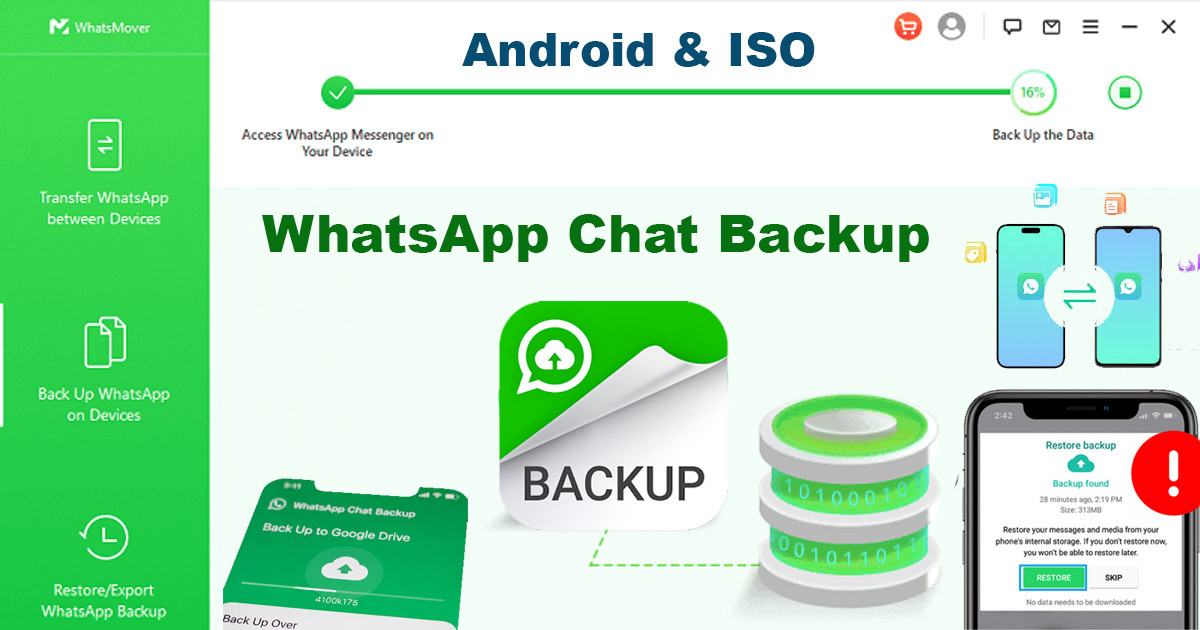
How to Backup and Check Your WhatsApp Chat History (Full Guide 2026)
You probably use WhatsApp every single day. It holds your chats with family, important work details, and photos you want to keep forever. If you lose your phone or it breaks, you could lose all that data in a second. Many people think their messages stay on the app forever, but that is not true. Taking a few minutes to set up a backup plan is the best way to make sure your memories are safe.
This guide is here to help you back up and check your WhatsApp chat history in 2026. We will look at how to do this on both Android and iPhone. It is simple, fast, and keeps your data away from prying eyes. Whether you are upgrading to a new device or just want peace of mind, these steps will keep your history safe.
Life happens, and phones get lost, stolen, or damaged. Sometimes, you might even delete a chat by mistake and regret it. A solid backup strategy fixes these problems. It ensures that when you get a new device, your conversations are ready and waiting for you.
Understanding WhatsApp Backups: What You Need to Know
Why Back Up Your WhatsApp Chats?
The main reason to back up is data loss. Phone upgrades are common, and moving your chat history is the biggest hurdle when switching devices. If you do not have a backup, you start with a blank screen. Backups also protect you if your phone crashes or gets software bugs. You should treat your chat history like any other important document on your computer.
Where Are WhatsApp Backups Stored?
WhatsApp stores your data in two main ways. First, there is cloud storage. Android uses Google Drive, and iPhones use iCloud. These are the most common because they sync your data across devices. Second, there are local backups. These live directly on your phone’s memory. Local backups are great for transferring data without needing the internet. Cloud storage is safer if your phone is lost, while local backups are faster to restore.

Frequency and Automation of Backups
You do not want to remember to click "Back up" every day. WhatsApp lets you set this on auto-pilot. You can choose to back up daily, weekly, or monthly. We highly recommend you set this to "Daily." That way, if you lose your phone, you only lose a few hours of messages, not months of work. To set this up, go into your app settings and find the backup menu. Turn on the automatic feature and forget about it.
Backing Up Your WhatsApp Chat History on Android
Google Drive Backups
Google Drive is the standard for Android users. First, open WhatsApp and tap the three dots in the top right corner. Go to Settings, then Chats, and finally Chat backup. You will see a button that says "Back up to Google Drive." Select "Daily" for the frequency. Next, pick your Google account from the list. If you do not see one, add it. You can choose to back up over Wi-Fi only to save your data plan. Make sure to toggle the "Include videos" switch if those clips are important to you.
Before you start, make sure you are logged into the correct Google account. If you log into the wrong one, you will not find your chats when you try to restore them later.
Local Backups
WhatsApp makes a local backup every day at 2:00 AM. These files sit in your phone's internal storage. You can find them by using a file manager app. Look for a folder named "WhatsApp" or "Android/media/com.whatsapp/WhatsApp." Inside, there is a folder called "Databases." These files are encrypted, but they are great for offline transfers. If you move these files to a new phone manually, you can restore your chats without a Google account.

Considerations for Android Backups
Storage is a real issue. Videos take up a lot of space on Google Drive. If you have a large backup, it might slow down your phone or eat up your cloud quota. Check your available storage in your Google Drive app settings. Also, keep an eye on your battery. A large backup takes time and drains power. Plug your phone into a charger while the backup runs to be safe.
Backing Up Your WhatsApp Chat History on iOS
iCloud Backups
For iPhone users, iCloud is the go-to tool. Open WhatsApp and tap Settings in the bottom right corner. Go to Chats, then Chat Backup. Tap "Back Up Now" to start a manual save. Underneath, turn on "Auto-Backup" and select "Daily." Make sure you are signed into your iCloud account on your iPhone. If you are not signed in, the backup will fail.
Ensure iCloud Drive is turned on in your main iPhone settings. Go to Settings > [Your Name] > iCloud > iCloud Drive and make sure WhatsApp is toggled on. If this is off, your backup will not sync.
Local Backups (for iOS)
iCloud is not your only choice. You can perform a full backup of your iPhone using a computer. If you plug your iPhone into a Mac or a PC with iTunes, you can create a complete copy of your phone. This copy includes your WhatsApp messages. It is not as simple as a cloud backup, but it works well if you do not want to pay for extra iCloud storage.
Considerations for iOS Backups
iCloud offers a limited amount of free space. If your chat history is huge, you might hit the limit quickly. Check your storage levels in your iPhone settings. Backing up videos is the fastest way to fill up your cloud space. If you are low on room, turn off the "Include Videos" option in the WhatsApp backup settings. Always use a stable Wi-Fi network for these backups, as they can be large files.
Checking Your WhatsApp Chat History and Backups
Restoring from a Backup
If you get a new phone, the restore process is automatic during the setup. Uninstall WhatsApp and install it again on the new device. Open the app and enter your phone number. Verify the number with the code sent via SMS. Once verified, the app will scan for a backup. Tap "Restore" when the prompt appears. Use the same phone number and the same Google or Apple ID you used for the original backup. If you use a different account, the app will not find your history.
Verifying Backup Integrity
How do you know the backup is good? Go back to the Chat Backup menu in your WhatsApp settings. Look at the timestamp for the "Last Backup." If it shows today's date, you are safe. If it shows a date from weeks ago, your auto-backup might be broken. You can try a small test backup by hitting the "Back Up" button. This forces the app to update the cloud file immediately.
What's Included (and Not Included) in a Backup
Your backup contains your text messages, voice notes, photos, and documents. It also saves your group chat history. However, some things do not get saved. WhatsApp does not back up your call history or media stored in other apps. If you used the disappearing messages feature, those chats are gone once they disappear. They will not be in your backup. WhatsApp provides an official list of what is saved on their help page, so check there if you are unsure about a specific file type.
Advanced Tips and Troubleshooting
Backup Encryption
Security is important. You can turn on end-to-end encrypted backups for both Google Drive and iCloud. This ensures that even the companies storing your files cannot read them. Go to your Chat Backup settings and look for the "End-to-end encrypted backup" option. Turn it on and create a strong password or a 64-digit key. Do not lose this key. If you forget it, you will lose your backup forever. Write it down or save it in a secure password manager.
Common Backup Errors and Solutions
Errors happen. The most common one is a "Backup failed" message. This usually means you ran out of storage space on your cloud drive or your internet is too slow. If you see this, clear out old files in your Google Drive or iCloud storage. Check your internet connection or try switching from cellular data to a stable Wi-Fi network. Sometimes, a simple restart of your phone fixes the sync issue. If the backup is corrupted, delete the old backup file and try to create a fresh one from scratch.
Transferring Chats to a New Phone
Backups are the primary way to move your data to a new device. The average person replaces their phone every three years, so you will likely do this soon. When you move to a new phone, keep your old device active until the transfer is finished. Make sure your backup is fresh on the old phone before you start the move. Once you log in on the new device, the app handles the rest. This process makes the switch almost invisible to you.
Wrap Up Your Backups
Your WhatsApp chat history holds memories and details that are hard to replace. Do not wait for a broken phone to realize you should have made a backup. Regular backups keep your data safe from accidents and simple system errors.
Take a moment right now to check your settings. Ensure that your backup is set to daily and that you are signed into the correct cloud account. Use the steps provided here to verify that your last backup is recent. It only takes a minute, but it saves hours of frustration later. Secure your digital history today so you can use your phone without worry tomorrow.
What's Your Reaction?
 Like
0
Like
0
 Dislike
0
Dislike
0
 Love
0
Love
0
 Funny
0
Funny
0
 Wow
0
Wow
0
 Sad
0
Sad
0
 Angry
0
Angry
0





Comments (0)