

How to See WiFi Password Already Connected — All Methods (2026)
Already connected to a WiFi but forgot the password? Or need it for another device? This guide covers every working method — Android, iPhone, Windows, and router settings included.

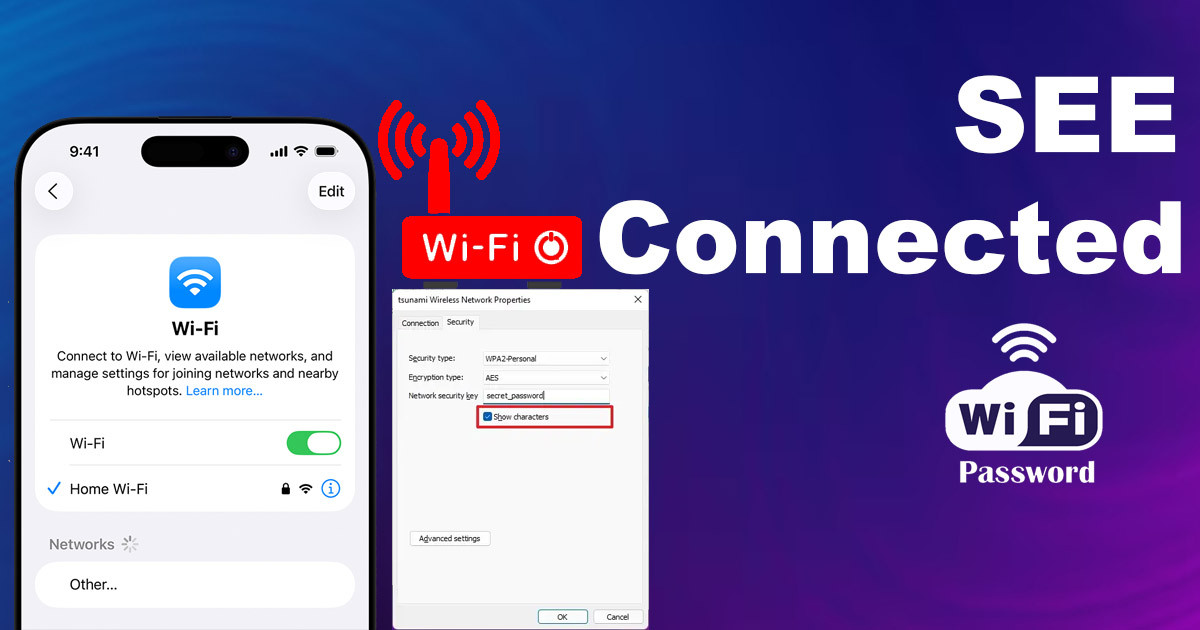
How to See WiFi Password Already Connected — All Methods (2026)
You have a friend over at your house. They ask for your WiFi password so they can get online. You realize you have no idea what the password is. Your phone connects automatically, and your laptop remembers the network, so you never had to write it down. It is a common, frustrating situation that happens to almost everyone.
Instead of hunting for that sticker on the back of your router or digging through old notebooks, you can just pull the information from your own devices. Most operating systems keep this data saved, and you can access it with a few simple steps. You do not need to be a tech expert to get this done.
This guide shows you how to see a WiFi password already connected on your computer, phone, or tablet. Whether you use Windows, a Mac, Android, or an iPhone, you can get the credentials you need in under a minute.
Retrieving WiFi Passwords on Windows Devices
Windows stores your network information in a few different places. You can use the visual interface or the command line depending on what you prefer.


Accessing Network Details via Control Panel
The Control Panel is the classic way to find your connection details. It is reliable and works on almost every version of Windows.
- Click the Start button and type "Control Panel." Open it.
- Select "Network and Internet" and then click "Network and Sharing Center."
- Look for the "Connections" section. You will see a blue link next to "Wi-Fi" with your network name. Click it.
- A new window will pop up. Click the button labeled "Wireless Properties."
- Go to the "Security" tab in the next window.
- Check the box that says "Show characters." Your password will appear in the "Network security key" field.
A helpful tip: If you find yourself checking this often, right-click the "Network and Sharing Center" and pin it to your taskbar or Start menu for faster access.
Using PowerShell for Password Recovery
If you want a faster, more direct way, use PowerShell. This command-line tool acts as a shortcut to pull the password directly from your system files.
- Right-click the Start button and select "Windows PowerShell (Admin)" or "Terminal (Admin)."
- Type or paste this command:
netsh wlan show profile name="Your_WiFi_Name" key=clear. - Replace "Your_WiFi_Name" with the actual name of your network, but keep the quotes.
- Press Enter.
- Scroll down in the output until you see a section labeled "Security settings."
- Look for the line that says "Key Content." The text right next to it is your WiFi password.
One user recently forgot their home WiFi password right before a group study session. Using this PowerShell method saved them from having to reset the entire router and reconnect every smart device in the house.
Viewing Saved Passwords in Windows Settings (Windows 10/11)
Windows 10 and 11 have a modern settings menu that makes this task even easier. You do not need to touch the old Control Panel for this.
- Open your "Settings" app.
- Go to "Network & internet" and then click on "Wi-Fi."
- Select "Manage known networks." This shows a list of every network your computer has ever saved.
- Find the network you are currently using in the list and click "Properties."
- Look for the "Security" section.
- Click the "Show" button next to "View Wi-Fi security key."
Make it a habit to check this list every few months. If you see old networks from coffee shops or hotels you no longer visit, remove them. It keeps your list clean and slightly improves your security.
How to Find WiFi Passwords on macOS
Mac users have a dedicated tool for all saved passwords called Keychain Access. It is built right into the system.
Utilizing Keychain Access
This utility acts like a vault for all your saved login info, including your wireless credentials.
- Press Command + Space to open Spotlight search.
- Type "Keychain Access" and hit Enter.
- In the search bar at the top right of the app, type the name of your WiFi network.
- Double-click the network name from the list that appears.
- In the window that opens, check the "Show password" box.
- Your Mac will ask for your administrator login password to verify it is really you. Enter it, and the WiFi password will display.
Try to keep your Keychain organized. If you have many saved networks, you can create categories or simply clean out the old ones you do not need anymore.
Command Line Approach on Mac
If you are comfortable with the Terminal, you can get the password without clicking through menus.
- Open "Terminal" from your Applications folder or via Spotlight.
- Type the following command:
security find-generic-password -wa "Your_WiFi_Name". - Put the name of your network in the quotes.
- Press Enter.
- A window will pop up asking for your Mac admin password. Type it in and click "Allow."
- The password will print directly into the Terminal window.
This command is powerful because it talks directly to the secure storage where your Mac hides its sensitive data. It is the quickest way to see the password if your fingers are already on the keyboard.
Accessing WiFi Passwords on Android Devices
Android manufacturers handle WiFi passwords differently depending on the brand. However, most modern versions rely on QR codes.
Viewing Passwords Through WiFi Settings
Most newer Android phones (running Android 10 or later) have a share feature that exposes the password instantly.
- Open your "Settings" app.
- Go to "Network & internet" or "Connections" depending on your phone model.
- Tap on "Wi-Fi."
- Tap the gear icon or the "i" icon next to the network you are connected to.
- You should see a button that says "Share" or a button that shows a "QR Code."
- Once you tap that, your screen will display a QR code. Often, the password is written in plain text right underneath the code.
If you don't see the text, take a screenshot of the QR code. You can then use a separate QR scanner app, or even Google Lens, to read the code and reveal the text hidden inside.
Using Third-Party Apps (with Caution)
You might see apps in the Play Store that claim to "recover" or "show" WiFi passwords. Be careful with these. Many of these apps require "root" access, which is a process that gives you deep control over your phone’s software. Rooting your device can void your warranty and, more importantly, create big security holes.
If you decide to use an app, only download tools from well-known developers with high ratings. Even then, know that these apps are often unnecessary. Most people can use the built-in QR code method described above without installing any extra software.
Finding WiFi Passwords on iOS (iPhone/iPad)
Apple has made it very easy to view saved passwords in recent versions of iOS.
Accessing Passwords via iCloud Keychain
If you are on a recent version of iOS, you do not need a Mac or a separate tool to see your password. You can do it right in your settings.
- Open the "Settings" app on your iPhone or iPad.
- Tap on "Wi-Fi."
- Find your current network and tap the blue "i" icon next to it.
- You will see a field labeled "Password." It will be hidden by dots.
- Tap on those dots. Your iPhone will ask for your Face ID, Touch ID, or passcode.
- Once you verify your identity, the password will be shown in plain text.
This works perfectly as long as the device is connected to the network or has saved it in the past.
Using a Mac to Retrieve iOS WiFi Passwords
If you have an older iPhone or an iPad that does not show the password in settings, you can use your Mac if it is signed into the same iCloud account. Apple syncs your keychain data across all your devices.
- Ensure both your iPhone and your Mac are signed into the same Apple ID.
- On your Mac, open "Keychain Access."
- Search for the name of the network your iPhone is using.
- Double-click the network entry.
- Check the "Show password" box and enter your admin password.
Because your devices share this information through iCloud, you do not need to do anything special to "move" the password from your phone to your computer. It is already there waiting for you.
Conclusion
Knowing how to see your WiFi password is a handy trick that saves time and avoids frustration. Whether you are on a Windows PC, a Mac, or a mobile device, you have several ways to retrieve that information.
Windows users can use the Control Panel or PowerShell, while Mac users have Keychain Access. Mobile users on Android can use the QR code share method, and iPhone users can view passwords directly in their settings. Each method is straightforward and keeps you from having to reset your router or guess at old passwords.
Keep this guide in mind for the next time a guest asks for your connection details. Finally, remember that while viewing these passwords is easy, security is important. Use strong, unique passwords for your network, and change them if you suspect someone unauthorized has gained access. Keeping your digital house in order starts with how you manage these small, everyday details.
What's Your Reaction?
 Like
0
Like
0
 Dislike
0
Dislike
0
 Love
0
Love
0
 Funny
0
Funny
0
 Wow
0
Wow
0
 Sad
0
Sad
0
 Angry
0
Angry
0









Comments (0)