

How to Send WhatsApp Photos and Videos in HD Quality
This reduced quality and removed important details. Recent updates now provide better sharing options. Users can send WhatsApp media in HD quality. They can also make HD quality default.

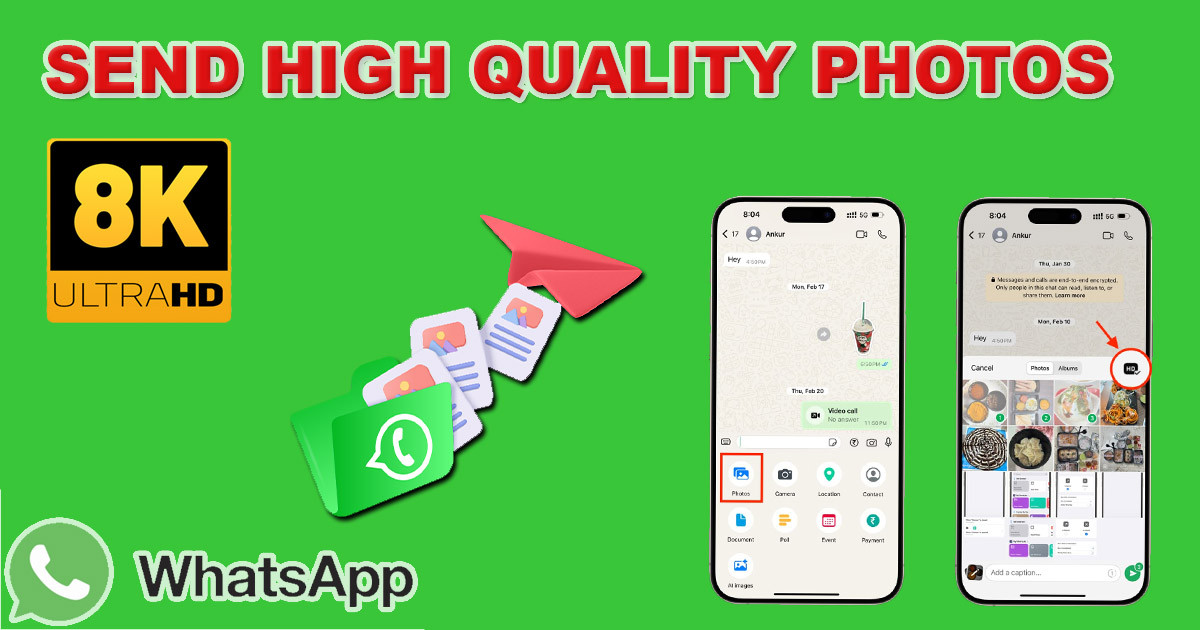
How to Send WhatsApp Photos and Videos in HD Quality (Without Losing Quality)
WhatsApp is a staple app for staying in touch. It is fast, reliable, and keeps your messages private. Yet, many people feel annoyed when they try to share a great photo or video. You send a file, and the app makes it look blurry or washed out. This happens because WhatsApp wants to save space. While this keeps the app snappy, it ruins the visual detail you want to share. If you are tired of pixelated images and grainy videos, this guide is for you. We will show you exactly how to keep your media sharp.
Understanding WhatsApp's Media Compression
To fix the quality, you first need to know why the issue happens. WhatsApp treats all media files as targets for size reduction.
Why WhatsApp Compresses Media
The app focuses on speed and data usage. By shrinking files, WhatsApp ensures your messages arrive instantly, even if your signal is weak. It also saves your phone’s internal storage and uses less mobile data when you send items. The app achieves this by stripping out excess data from your files. While this makes the file smaller, it also hurts the final image.
The Impact of Compression on Photo and Video Quality
You will notice the loss of quality quickly. Sharp edges might look fuzzy or jagged. Bright, vibrant colors often look flat or dull. If you look closely at a dark area in a photo, you might see blocky patterns instead of smooth shadows. These compression tools remove detail that the app deems "unnecessary." For a quick text, this is fine. For a family memory or a work file, it is frustrating.
When High-Quality Sharing Matters
There are times when full detail is non-negotiable. Perhaps you are a photographer sending a sample to a client. Maybe you are a student sharing an architectural drawing or a scan of a document. Or, you might just want to share a high-resolution memory of a trip without it looking like a low-quality snapshot. In these cases, you need to bypass standard compression.
Method 1: Sending Photos and Videos as Documents
Sending your media as a document is the most reliable way to maintain quality. When you do this, WhatsApp treats the item as a file instead of a picture. It does not try to shrink it.
For Android Users: Step-by-Step Guide
- Open the chat where you want to send the file.
- Tap the paperclip icon in the text box.
- Choose "Document" from the menu.
- Browse your phone storage to find your photo or video.
- Select the file and tap "Send."
For iOS Users: Step-by-Step Guide
- Open the chat on your iPhone.
- Tap the plus (+) icon next to the text field.
- Select "Document" from the list.
- Choose the file from your Files app or select it from your photo library.
- Tap "Send" to share the file at its original size.
What to Expect When Sending as a Document
Your recipient will not see a preview of the photo or video inside the chat. Instead, they will see a file icon with the name of the file and its size. They must tap the file to open it. Once opened, it will appear in their gallery or media player in the original, perfect quality. It is a slight extra step, but it is the best way to keep your media looking sharp.
Method 2: How to Send WhatsApp Photos and Videos in HD Quality Using Settings
If you prefer to keep your media as a viewable preview, WhatsApp has a built-in feature for that. It is not as effective as the document method, but it helps.
Locating the Settings on Your Phone
- Open WhatsApp and go to the "Settings" menu.
- Tap on "Storage and Data."
- Scroll down to the bottom and find "Media Upload Quality."
Choosing the "HD Quality" Option
Inside the menu, you will see two choices: "Standard Quality" and "HD Quality." Select "HD Quality." This tells the app to keep more detail when you upload photos or videos. It prioritizes the look of the file over data savings.
Limitations of the HD Upload Setting
Even with this setting on, WhatsApp still performs some level of compression. The app reduces the file size to ensure it does not overwhelm your network or the server. While it is much better than "Standard Quality," it may not be a perfect, bit-for-bit copy of your original file. It works best for social media sharing where absolute perfection is not required. Always check your media after sending to ensure it meets your standards.
Method 3: Using Cloud Storage Links
If you have a very large video file, neither of the previous methods may work well. WhatsApp has file size limits, and sending massive videos can take a long time. Cloud storage is the answer here.
How to Upload to Google Drive or Dropbox
- Open your cloud storage app, like Google Drive, Dropbox, or iCloud.
- Upload the photo or video from your device.
- Once the upload finishes, tap the options menu for that file.
- Select "Share" or "Copy Link."
Sharing the Link via WhatsApp
- Go back to your WhatsApp chat.
- Paste the link into the text box and hit send.
- Your recipient simply taps the link to view or download the file.
Benefits of Cloud Storage for Large Files
This method bypasses WhatsApp's compression and file size limits entirely. The recipient can download the file at their own pace. You also have total control over permissions. If you only want a specific person to see the file, you can manage that in your cloud settings. It is the cleanest way to share high-resolution content with zero loss in quality.

Best Practices for Sending High-Quality Media
Even with these methods, keep a few things in mind to make the process smoother.
Always Check File Size Before Sending
Be aware of how large your files are. If you are sending a 4K video, it might be several gigabytes. No matter the method, a massive file will take time to upload. If you are on a limited data plan, watch your usage.
Inform Your Recipient
If you are sending a file as a document, tell the person on the other end. They might be confused if they just see a file icon. A quick note like "Sending this as a file so it stays clear" helps them understand why there is no preview.
Consider Your Internet Connection
Uploading high-quality media requires a stable connection. A weak signal will cause your upload to fail or hang. Whenever possible, use a strong Wi-Fi connection to send your files. This prevents interruptions and ensures your media reaches the recipient without issues.
Conclusion: Enjoy Your Crystal-Clear Media
You no longer have to settle for grainy, compressed photos on WhatsApp. By using the document method, you preserve every pixel of your original images. Adjusting your media upload settings gives you a quick boost for casual sharing. When files are too big to handle, cloud links provide a solid workaround. These habits ensure your memories and important files look their best, no matter where they end up. Keep these tips in mind, and you will share high-definition content with confidence every time.
What's Your Reaction?
 Like
0
Like
0
 Dislike
0
Dislike
0
 Love
0
Love
0
 Funny
0
Funny
0
 Wow
0
Wow
0
 Sad
0
Sad
0
 Angry
0
Angry
0














Comments (0)