

How to Silence Unknown Calls on WhatsApp 2026
Silence Unknown Calls on WhatsApp helps improve user privacy. Many people receive unwanted calls every day. Some callers pretend to represent trusted organizations.

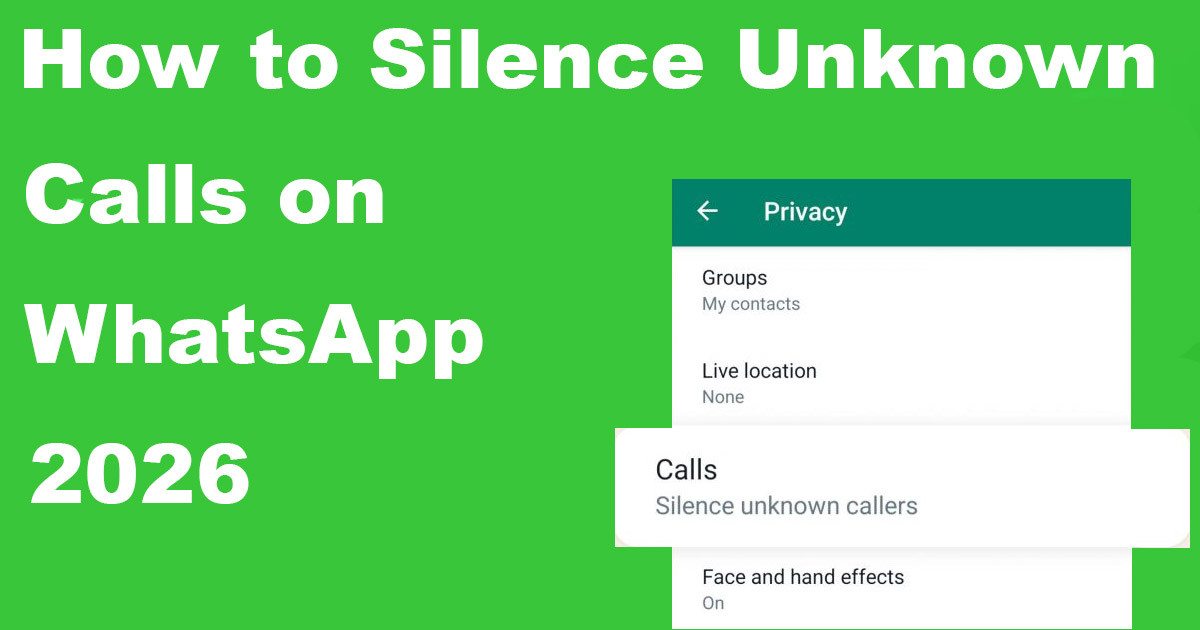
How to Silence Unknown Calls on WhatsApp: Your Ultimate Guide
Your phone vibrates against the desk. You glance down, hoping for a message from a friend or a work update. Instead, you see a random international number flashing on your screen. You do not recognize the caller, and you definitely did not give them your number. This happens to millions of people every single day. WhatsApp spam calls are a major annoyance, and they can even be dangerous if they lead to phishing scams or identity theft.
It is frustrating to have your focus broken by someone trying to sell you something or steal your data. You probably want to stop these calls before they ring your phone. The good news is that WhatsApp has a built-in tool that handles this problem for you. By using the "Silence Unknown Callers" feature, you can regain control of your attention and stop random callers from bothering you. This guide will show you how to turn it on, how it works, and how to make sure you never miss a real call from a person you actually know.
Understanding WhatsApp's "Silence Unknown Callers" Feature
If you are tired of unwanted interruptions, this setting is exactly what you need. It changes how your phone reacts when a person who is not in your contact list tries to reach you.
What It Does and Doesn't Do
When you turn on this feature, your phone will not ring when someone who is not in your address book calls you. The call will not make a sound, and your screen will not light up with a notification. It acts as a digital bouncer for your phone.
However, it is important to know that this does not block the caller entirely. The call still happens, but it is silenced. You will see a record of the call in your WhatsApp "Calls" tab later. This is a crucial distinction. The caller will not get a message saying they are blocked. To them, it will just seem like you did not pick up. This keeps your communication flow smooth while stopping the immediate annoyance of a ringing phone.
Why It's Essential for Privacy and Peace of Mind
Spam calls are more than just a nuisance. Scammers often use WhatsApp to trick people into giving up personal info or money. They rely on the surprise of a ringing phone to get you to answer without thinking. By silencing these calls, you remove the chance for them to catch you off guard.
This feature creates a safer space for your daily chats. You can focus on your actual contacts without worrying about who might be calling next. It helps keep your digital life private. Plus, it saves your battery life and keeps your notifications clean. You can look at your missed call history on your own time, rather than letting the caller dictate when you look at your phone.
Activating "Silence Unknown Callers" on Your Device
You can turn this feature on in just a few taps. It does not matter if you use an Android phone or an iPhone, the steps are quick and easy.
Step-by-Step Guide for Android Users
If you are an Android user, follow these steps to secure your account:
- Open the WhatsApp app on your device.
- Tap the three vertical dots in the top right corner of the screen.
- Select "Settings" from the menu that appears.
- Tap on "Privacy."
- Look for the "Calls" option and tap it.
- Find the toggle switch labeled "Silence unknown callers."
- Tap the switch to move it to the "on" position.
Once you toggle this on, you are set. Your phone will immediately start silencing calls from any number that is not saved in your phone’s address book. You do not need to restart the app or your phone for this to work.
Step-by-Step Guide for iOS Users
iPhone users can protect themselves just as easily by following these steps:
- Open your WhatsApp app.
- Tap the "Settings" tab located at the bottom right of the screen.
- Tap on "Privacy" from the list of options.
- Select the "Calls" menu.
- Locate the setting called "Silence unknown callers."
- Toggle the switch to "on."
The process is very similar across both platforms. Once the switch is green or highlighted, the feature is active. You are now protected from unwanted interruptions from strangers.
Managing Your Contacts and Call History Effectively
While this feature is a great tool, it relies on your address book. If you do not have someone saved, their call will be silenced. This makes it very important to keep your contacts clean and up to date.
The Importance of Keeping Your Contact List Updated
The "Silence Unknown Callers" feature only knows who to let through based on your saved contacts. If you meet a new client, a friend, or a coworker, add their number to your phone as soon as possible. If you forget to save them, you might miss a call you actually wanted to take.
Try to review your contact list every few months. Delete old numbers of people you no longer talk to and ensure that current friends have their correct numbers saved. If you are waiting for an important call from someone new, make sure you have their number in your address book before they reach out. This small habit prevents accidental silence for people you care about.
How to Review Silenced Calls
Just because a call is silenced does not mean it disappears forever. You can still check who tried to contact you. If you get a suspicious feeling or are expecting a delivery, you can verify if someone reached out.
- Open WhatsApp.
- Tap the "Calls" tab at the top of your screen.
- Here, you will see a list of all your recent calls.
- Any calls that were silenced will show up in this list with a note indicating they were silenced.
You can scan this list whenever you have a free moment. If you see a number you recognize, you can save it to your contacts or call them back. If you see a spammy-looking number, you can simply ignore it. This gives you the best of both worlds: peace from spam and the ability to track who called you.

Beyond Silencing: Additional Strategies for Blocking and Reporting
Sometimes, silencing is not enough. If one specific person or spammer keeps calling you, you have more options. You can stop them for good.
When to Block a Number
Silencing is for when you do not want to be bothered by strangers. Blocking is for when you want to stop all contact from a specific person. When you block a number, that person cannot call you or send you messages on WhatsApp. They will not see your status updates or profile photo updates either.
To block someone:
- Open the chat with that person or go to your "Calls" tab.
- Tap on the contact name or the number.
- Scroll down until you see the "Block" option.
- Confirm that you want to block the user.
Use this for people who are being rude, aggressive, or spamming you repeatedly. It is a permanent solution for bad behavior.
Reporting Spam and Abusive Behavior
WhatsApp allows you to report accounts that break their rules. If you receive a call from a scammer, reporting them helps WhatsApp remove that account from the system so they cannot bother other people.
When you block a number, WhatsApp often gives you a checkbox to "Report" that user at the same time. Always check this box if the caller was trying to scam you or sending spam. By reporting these accounts, you contribute to a cleaner environment for everyone on the app. It takes only an extra second, but it goes a long way in keeping the platform safe.
Conclusion
You do not have to live with a phone that rings constantly from people you do not know. The "Silence Unknown Callers" feature is one of the best tools you can use to protect your time and your sanity. By turning it on, you stop spam calls from interrupting your work, your sleep, or your quality time with family.
Remember to keep your contact list current so you do not miss calls from people you care about. Check your "Calls" tab occasionally to stay on top of who has reached out. If you encounter repeat offenders, do not hesitate to block and report them. You are in charge of your WhatsApp experience. Take these simple steps today to enjoy a quieter, safer, and more peaceful messaging experience.
What's Your Reaction?
 Like
0
Like
0
 Dislike
0
Dislike
0
 Love
0
Love
0
 Funny
0
Funny
0
 Wow
0
Wow
0
 Sad
0
Sad
0
 Angry
0
Angry
0













Comments (0)