

How to Embed Instagram Photos and Videos on Your Website
Embed Instagram Photos or Videos on Website feature improves website engagement and visitor interaction greatly. Instagram embeds display real social content directly online beautifully.

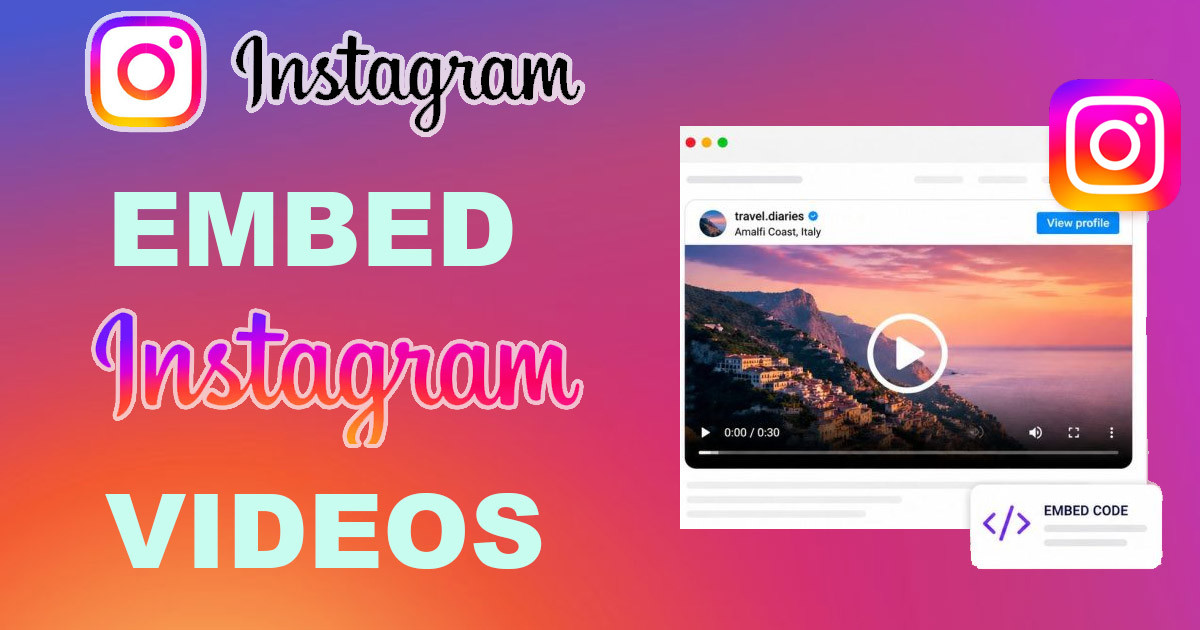
How to Embed Instagram Photos and Videos on Your Website for Increased Engagement
How many times have you scrolled through your Instagram feed, only to see a post that perfectly matches a product or story you are sharing on your blog? Instagram’s visual nature makes it a fantastic tool for showcasing products, behind-the-scenes content, and user-generated stories. Integrating this dynamic content directly onto your website boosts engagement, builds social proof, and drives traffic back to your Instagram profile. This guide shows you the most effective ways to embed Instagram photos and videos, turning your website into a living, breathing showcase of your brand's visual story. These social integrations help you connect with your audience on a personal level and improve your online presence.
The benefits of displaying Instagram content go beyond simple aesthetics. It provides fresh, authentic material that keeps your website visitors returning, offering a real look into your brand's personality and community. Furthermore, social proof, such as likes, comments, and shared user content, can strongly influence buying decisions and build trust. Let's look at the different techniques, from simple copy-pasting to more advanced options, to make your website a hub for your Instagram success.

Understanding Your Options to Embed Instagram Photos and Videos
There are two main ways to get Instagram content onto your website: the official method provided by Instagram and third-party tools.
The Official Instagram Embed Feature
Instagram provides a built-in feature that lets you take any public post and display it on your own site. You simply find the post you want, grab the code, and place it where you want the image to appear.
- Locating the Embed Option: On a desktop browser, find the post, click the "..." (three dots) icon at the top right, and select "Embed."
- The Code: A window will pop up with an iframe code snippet. Copy this code.
- The Limitation: This method is simple but static. It does not update automatically if you change the post caption on Instagram, and it offers almost no layout customization.
Third-Party Embedding Tools and Widgets
If you want a more dynamic experience, third-party services are the answer. These tools can automatically pull in your latest posts as a feed, grid, or carousel.
- What they do: These tools connect to your Instagram account via an API. They automatically update your website whenever you post to Instagram.
- Design control: You can change layouts, filter by hashtags, and match the look to your website's colors and fonts.
- Analytics: Many of these tools also offer data on which images get the most clicks from your website.

Embedding Instagram Photos and Videos Using the Official Method
For those who want a simple, direct embed without installing extra plugins or services, the official method works well.
Step-by-Step Guide
Follow these steps to embed a single photo or video:
- Navigate to the specific Instagram photo or video you want to embed using a web browser.
- Click the "..." (three dots) icon above the post.
- Select "Embed."
- Click "Copy embed code."
- Paste the code into the HTML editor of your website where you want the content to appear.
When you paste the generated code into your website's editor, you are technically using an iframe. If you run into issues, learning about how a WordPress iFrame works can help you troubleshoot.
Customizing the Official Embed
While the official embed is limited, you do have two small options. You can change these by editing the code snippet directly:
maxwidth: Change this value to make the embedded frame wider or narrower to fit your page layout.hidecaption: By default, the post caption shows below the image. You can remove it by addinghidecaptionto the blockquote tag in the code.
Embedding Instagram Videos: Specific Considerations
Embedding video content is nearly identical to embedding photos. You use the exact same "Embed" process. However, videos require more thought because they affect how your page loads.
- Video Length: Instagram limits how long a post can be, but keep in mind that longer videos can slow down your page speed.
- User Experience: Ensure your website's container for the video is mobile-responsive. A video that looks great on a desktop screen might be too large or cut off on a phone.
- Autoplay: Most browsers now block videos from playing automatically with sound on. Expect your embedded videos to wait for the user to click "play."
Using Third-Party Tools to Embed Instagram Photos and Videos
For brands that want a professional look and feel, third-party tools provide a much better experience. These allow you to create galleries that act like mini-portfolios on your site.
Creating Instagram Feeds and Grids
Feeds and grids keep your website content looking fresh without you needing to manually update the page.
- Diverse Content: You can create grids that pull in posts from your own profile or even feed in posts tagged with your brand’s specific hashtag.
- Customization: Look for tools that let you set how many columns appear on desktop versus mobile screens.
- Moderation: Good third-party tools let you approve or hide specific posts before they appear on your site.
Showcasing User-Generated Content
User-generated content (UGC) is one of the best forms of social proof. When customers post photos using your product, embedding those posts on your product pages builds significant trust.
- Authenticity: Real photos from real people are often more persuasive than staged professional shots.
- Permissions: Always get permission before embedding content that does not belong to you. A simple comment asking, "Can we feature this on our website?" is usually enough.
Interactive and Shoppable Instagram Feeds
The best third-party tools turn your feed into a sales channel. These tools let you link specific products from your website to your Instagram posts. When a visitor sees an item they like in your feed, they can click it and go straight to the product page to buy it. This direct path can significantly increase your conversion rates.
Optimizing Embedded Instagram Content
Once you have your content placed, ensure it looks and performs as well as possible.
Visual Harmony and Branding
Your embedded content should not look like an afterthought. If you use a third-party tool, choose one that offers layout options that match your website’s aesthetic. Match your website’s fonts, colors, and button styles to the gallery to make it feel like a natural part of your brand.
SEO Benefits of Embedded Social Media
While embedding a post does not directly boost your search rankings, it does improve user signals that search engines like:
- Dwell Time: High-quality, interactive content keeps visitors on your page for longer.
- Freshness: If you use a feed tool, your page content changes frequently as you post on Instagram, which can signal to search engines that the page is active.
- Traffic: A well-placed feed can encourage users to click through to your Instagram profile, growing your overall social following.
Mobile Responsiveness and Performance
Mobile traffic is a massive part of the internet. If your Instagram feed breaks on a mobile phone, visitors will leave immediately. Always test your embeds on a phone, a tablet, and a desktop computer. Avoid loading too many high-resolution images or videos at once, as this will hurt your page load speed.
Conclusion
Embedding Instagram photos and videos is a practical strategy for brands looking to build a stronger connection with their audience. By using Instagram's native features for simple embeds or third-party tools for dynamic, shoppable feeds, you can easily transform your website into a visual destination. From building trust through user-generated content to keeping your site fresh with automatic updates, these methods offer clear benefits for your engagement and your brand's online growth. Start by experimenting with one or two key placements, like a testimonial feed on your homepage or a product gallery on your shop page, and see the difference it makes for your audience.
What's Your Reaction?
 Like
0
Like
0
 Dislike
0
Dislike
0
 Love
0
Love
0
 Funny
0
Funny
0
 Wow
0
Wow
0
 Sad
0
Sad
0
 Angry
0
Angry
0












Comments (0)